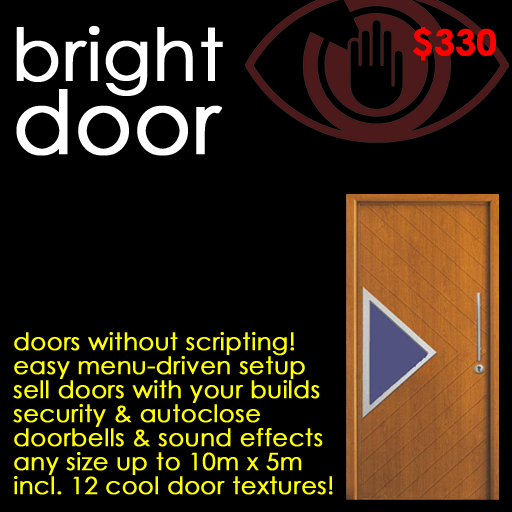
A one prim door you can add to your own builds and sell on without scripting!
The Bright Door is the perfect building component.
Simply rez it, link it to your build, click it, choose a few few settings from a menu, and 'save' them: that's it!
It's copyable, so use it as often as you like, and modifyable, so you can size and texture it as you wish. We even include 22 elegant door textures in the box.
And the saved door is transferable: you can give your build away, or even sell it, complete with your working Bright Doors.
The door's settings menus allow you to add the following features:
1. Rotate to 30, 60, 90, 120, 150 or 180 degrees in either direction.
2. Sound a doorbell - always, only when the door is locked, or never.
3. Make a sound opening or closing: a wooden clunk, a trekkie 'swish', or none.
4. If left open, automatically close after a period between 5s and 10m - or not.
Once the door has been saved, you (or anyone you give your build to) can open and close the door simply by clicking it.
They can also lock the door, by saying '/4 ALL', '/4 GROUP', or '/4 ME', to allow access to anyone, members of the group the build is set to, or only the owner.
The Bright Door hugely simplifies the process of building: removing the need to create your own scripts or tinker with other people's, and making adding a door as simple as adding a wall.
And it need not be limited to doors: the Bright Door can be used to create any prim which has to turn or open, such as the lid of a box, a window or window shutter, the cover of a book, the screen of a laptop, a railway signal, a traffic barrier... be imaginative!
During setup, Bright doors are copy/mod: rez as many as you like, edit them how you like.
Once you have saved their settings, they are full perms. Give them away or sell them.
The door contain two scripts, one of which is "no mod/no trans", so it will be listed this way in your inventory. Don't worry! Once you've rezzed the door, you *can* modify it. And once you've saved its settings, the no transfer script disappears, and you can give away or sell the finished, working door.
To unpack, drag the "Bright Door boxed" from your inventory onto the ground. Right-click the box and click "Open" to display a "Contents" window. Finally, click "Copy To Inventory" at the bottom of this window. A folder called "Bright Door boxed" will appear in your inventory.
1. Drag the "Bright Door" object from your "Bright Door boxed" folder onto the ground.
2. The door has one silvered metallic edge: this is the edge it rotates around. (It should also be obvious from the door design: the handles are on the side *away* from the hinge.) Link it to your build, positioning it as it should be when *closed*. (Make sure you don't make it the root prim.)
4. Edit, colour and texture the door as you like: up to 10m high and 5m wide.
5. Click the door to pop-up its settings menu:
--------------------------------------------------
Angle 0o, turn 90o, autoclose after 20s.
Type of door sound: Wood clunk
Doorbell (and greeting): When locked
Click SAVE to save settings & use door.
[Always ring] [When locked] [Never ring]
[Wood clunk] [Trek swoosh] [Silent]
[Turn] [Autoclose] [SAVE]
--------------------------------------------------
Choose [Always ring] to hear a doorbell when the door is clicked, and to see the visitor's name announced in chat. Click [When locked] to sound the bell and make an announcement only if the door refuses to open (because the owner has restricted access to themselves or their group and a stranger is visiting). [Never ring] silences both doorbell and announcements: so anyone refused admission will simply hear the sound of a door handle being rattled.
To change the sound made by the door as it opens and closes, click [Wood clunk] for a conventional door sound, [Trek swoosh] for the scifi sound of the Starship Enterprise's doors opening (did you know that this sound was uploaded to Second Life by Phillip Linden himself?), or [Silent] to suppress these sound effects. On clicking any of these buttons, the door will open and close to demonstrate the sound.
Click [Turn] to select how far the door should turn when opened. You will see a menu like this:
--------------------------------------------------
How far should the door turn on opening?
(Current setting is 60o)
[30o] [60o] [90o]
[120o] [150o] [180o]
[-30o] [-60o] [-90o]
[-120o] [-150o] [MENU]
--------------------------------------------------
So, for instance, choose 120 degrees to have the door open quite widely in one direction, or -90 to have it open less widely the other way. The door will open and close to demonstrate the effect of your choice: try a few values until you have found the one that suits your build, and then click [MENU] to return to the main settings menu.
Finally, click [Autoclose] to determine if the door should close itself automatically when left open, and after what delay:
--------------------------------------------------
How long should the door be left open before
automatically closing?
(Current setting is 20s.)
[5s] [10s] [20s]
[30s] [45s] [60s]
[120s] [180s] [300s]
[600s] [0s-no close] [MENU]
--------------------------------------------------
Click to choose delay between 5 and 600 seconds (10 minutes). Click [0s-no close] to simply leave doors open until clicked again. Having chosen the delay you want, click [MENU] to return to the main menu.
6. Click "SAVE". Your door is now finished!
The script which displayed the menus above will be deleted, and a simple opening and closing script will be left, using the settings you have chosen. This script is copyable and transferable, so once you have saved your settings, you can give away or sell as many copies of your creation as you like, with the working Bright Door in place!
* Make sure you keep the original door safe and unchanged: then, if you make a mess of a door you are editing, you can always rez the original and start again :)
* If you want to modify a door *after* you've saved its settings, just rez the original Bright Door, right-click it, click "Open", and drag the script "Bright Door menu script (C) 2011 Shan Bright" into your inventory. This is the script which is deleted when you save a door's settings: just drag it *back* into the door you want to reconfigure.
* If you are giving or selling a build which contains Bright Doors, remember to explain in your documentation that the buyer can lock doors by saying '/4 me' to restrict access to themselves, '/4 group' to allow any members of the group the building is set to to use the door, or '/4 all' to allow unrestricted access. The number '4' was chosen to be memorable: think of the door being 'for me', 'for group' or 'for all'.
* You'll find 22 textures in you "Bright Door boxed" folder: 12 door designs, 10 of which have glass panels and come in transparent and non-transparent versions. Give them a try!
Shan Bright
Chief Executive Officer