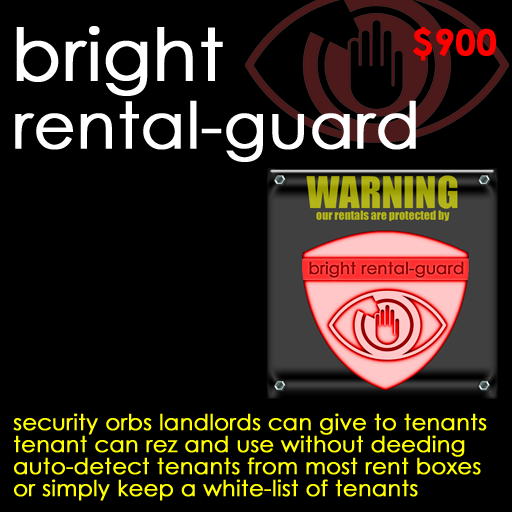
Allows landlords to give tenants security orbs without deeding or land rights!
Bright Rental-Guard allows you to distribute security orbs to your tenants, which they can use to restrict access to their rentals, without being granted them deeding rights, or any other sensitive permissions over your land.
Each tenant simply rezzes their orb, and adds a list of their friends' names to a notecard inside. Anyone not named in the notecard who enters their rental will be asked to leave, and (if they don't) ejected and banned. The tenant can switch the orb on and off simply by clicking it.
However, as landlord, you retain complete control using an object called the 'hub'. You can record a list of avatar keys allowed to rez orbs on a notecard inside the hub - a "whitelist". Orbs belonging to anyone else simply will not work: and if you remove someone from the list, their orb is immediately disabled. You can also add "goldist" keys, for avatars who can not only rez orbs, but change the settings of the hub itself - useful if you appoint managers to look after your rentals.
And no orb will restrict you, or your goldlisted managers, from entering your rentals.
The system will work with *any* rental system (indeed, it can work without any rental system at all) if you are happy to manually whitelist avatars who are allowed to use orbs. But you can also tell the system to allow orbs as long as they rezzed range you choose of a tenant's rent box - saving you the need to keep a list. This will work as long as your rent boxes store the tenant's key in their description. Most do.
To check if your rent boxes are suitable, just right-click one of your occupied rent boxes, click "Edit" to open the edit window, press "Control+A" to select the whole description, "Control+C" to copy it, and paste it into a notecard or PC text editor. If you can see your tenant's key anywhere in the string, you can configure your orbs to detect them automatically. Keys look like this (this is Torley Linden's key):
a98f2541-04e3-46b2-b038-f82d8cf86f3f
To see who a key belongs to, type the following in chat, and a link to their profile will appear in your chat history:
secondlife:///app/agent/a98f2541-04e3-46b2-b038-f82d8cf86f3f/about
This is the only requirement: you don't need any "plugin" scripts, and you don't need to modify your rental system at all.
Each orb protects up to a range *you* decide: so for instance, if you set the range to 50m, each orb will protect a sphere of space 50m in diameter. If your rentals are all on one parcel, and are very close together (as in a block of apartments), you probably won't be able to choose a range which is big enough to cover a single apartment, but small enough not to intrude into the apartments above and below. To benefit from Bright Rental-Guard, your rentals need to be either (a) on separate parcels, or (b) well separated, like sky boxes floating widely apart.
And yes, you *can* use this system to provide security for yourself too! If you rez an orb, it will work exactly as your tenants' orbs do!
The system consists of three objects...
The HUB: a central box from which you control who is allowed to use orbs, and the settings of the orbs themselves. No matter how many parcels or rentals you have in a region, one hub controls all the orbs on your land in the region.
The NOTICE: a sign which reads "Warning: our rentals are protected by Bright Rental-Guard". You need to rez one of these on each parcel you own in the region. If the parcel is group owned, you need to deed this notice to the group.
The ORB: a ball which you give to your tenants to rez in their rentals. It asks the hub for permission to work, and if granted, draws its settings - it's security range, how often it scans and so forth - from those you entered using the hub. The tenant can add their friends names to a notecard inside the orb, and switch it on and off by clicking it. (Please note that you are licensed to give the orbs away, but not to sell them - they are useless without the rest of the Bright Rental-Guard system, so please don't charge for them.)
There are five steps to setting up your system...
1. Rez your hub
2. Choose your settings
3. Write your keys list
4. Rez your notices
5. Give out your orbs
Each step is explained in detail below...
Drag the "Bright Rental-Guard boxed" object from your inventory onto the ground to rez it. Right-click it, click "Open" to display the contents window, and click "Copy To Inventory" to create new folder in your inventory.
In the folder, you will find the hub, notice and orb, and a manual. Drag the "Bright Rental-Guard hub" from your inventory onto the ground to rez it.
NOTE: do NOT rez more than one hub in a region! If for some reason you want to replace your hub, delete it, and then rez a new one.
Click it to display the settings menu:
---
Shan Bright's 'Bright Rental-Guard hub #001'
Use this menu to control all the orbs in this
region. These are their current settings...
Scan range: 50m
Scan time: 30s
Grace time: 30s
Box range: disabled
[Scan range] [Scan time] [Grace time]
[Box range] [Defaults] [RESET]
---
Click [Scan range] to set the range protected by each orb. You will be offered ranges between 5m and 96m. Keep in mind the layout of your rentals: the range needs to be big enough to cover the rental, but not so big as to overlap another rental on the same parcel. Whatever the range, orbs never scan beyond the parcel they are on, so if your rentals are on individual parcels, you can set the maxmimum range safely.
Click [Scan time] to control how often each orb will check for intruders. You will be offered a menu of intervals between 5 and 60 seconds.
Click [Grace time] to control how long an intruder is given between being asked to leave, and being ejected and banned. You will be offered a menu of periods between 5 and 60 seconds. Note that it is a breach of Second Life's "Terms of Service" not to allow adequate warning, so you need to allow a reasonable period to leave. How long is reasonable will depend on the size and layout of your rentals.
Click [Box range] if you wish to allow tenants whose names appear on rent boxes to use orbs without appearing on the whitelist in your hub. You will be offered a menu of ranges between 1m and 96m: if someone who isn't on your whitelist rezzes an orb, it will look within this range for a rent box - a scripted prim, owned by you, and with the orb owner's key in the description - to validate that they are a tenant. Note that a single scan can only find 16 objects (this limit is built into the scripting language), so if there are more than 16 objects within the range, the rent box may not be found.
IMPORTANT NOTE: Our *strong* advice is to keep the box range *very short* - no more than 5m. This will reduce the chance that there will be two many objects within range for the rent box to be found, and it will prevent the orb being rezzed somewhere from where the scan-range overlaps another rental on the same parcel.
Set the box range to 'disabled' to limit orbs to avatars whose keys appear on your whitelist.
Click [Defaults] to set all these settings to their factory defaults: scan range 50m, scan time 30s, grace time 30s, box range disabled.
Finally, click [RESET] to implement any setting changes you have made. All orbs in the region will be immediately updated.
To set up your keys list, right-click your hub, click "Open" to display its contents window, and double-click the "KEYS" notecard you will see inside.
Each line of this notecard should carry an avatar's key, with a prefix. You can add up to 30 keys.
To WHITELIST an avatar to use an orb, put a plus ("+") before their key (this is Philip Linden's key)...
+a2e76fcd-9360-4f6d-a924-000000000003
To GOLDLIST an avatar, so that they can not only use an orb, but change the settings of the hub, and enter any rental without being ejected by orbs, put an asterisk ("*") before their key (this is Torley Linden's key)...
*a98f2541-04e3-46b2-b038-f82d8cf86f3f
You are goldlisted automatically by your own hub: you don't need to add your key.
To BLACKLIST an avatar, so that they cannot use orbs even if they are tenants, put a minus ("-") before their key (this is Jack Linden's key)...
-d48f8fa7-2512-4fe5-80c8-c0a923412e07
Note that you only need to blacklist people if (a) you use the "box range" to allow tenants to use orbs without being whitelists and (b) they are a tenant. People who aren't your tenants, and don't appear on your whitelist, will be unable to use orbs anyway.
To find someone's key, simply ask them to click the hub. It will say...
I was clicked by Philip Linden whose key is a2e76fcd-9360-4f6d-a924-000000000003
You can then cut and paste the key from your chat history.
If the avatar is not around, you can find most keys from the site http://w-hat.com/name2key: or if you use the Phoenix or Firestorm viewers, you will find the avatar key in their profile.
Visit each parcel you own in the region where you wish to allow orbs to be used, and rez a notice there: it doesn't matter where as long as it is on the parcel. If you don't want it seen, edit it to make it smaller and put it somewhere inconspicuous.
If the parcel is owned by a group, you must deed the notice to the group...
a) Right-click the notice and click "Edit" to display its edit window.
b) Click the "General" tab.
c) Click the "Share" box to tick it.
d) Click "Deed".
Now all you need do is give orbs to your tenants.
The "Bright Rental-Guard orb" in your folder is a full perms object containing a copy/trans/no-mod script. You need not be sensitive about who receives these: they contain nothing which is specific to you or your rentals business, and will only work where landlords have set up Bright-Rental Guard and have either explicitly whitelisted an avatar, or are currently renting them a home. They are otherwise useless and harmless.
You can give them out individually, or (if your rental system has the feature, as the Bright Rental System does), make them an automatically given "welcome gift" to new tenants.
Here is an explanation you can pass on to your tenants on their use. You will need to edit it according to your settings:
---
This is a Bright-Rental Guard orb. Use it if you would like to restrict access to your rental.
Rez it [within ? metres of your rent box/in your rental], and click it to switch it on. If any other avatars come within [? metres] it will automatically ask them to leave, and eject and ban them if they don't.
To allow your friends access, right-click it, click "Open" to display the contents window, and double-click the "FRIENDS" notecard inside. Write each friends name on a separate line. Do not use "display names" - use their "legacy name". If their user name is "philip.linden" (with a dot), write "Philip Linden". If it is "janet13456" (without a dot), write "janet13456 Resident". Then save and close the notecard.
You can switch the orb on and off at any time by clicking it.
Please note that this will only work while you are renting with us, and only in your rental: it will not work anywhere else in Second Life.
---
* Check out the Bright Rental System! It is a powerful, flexible, low-lag, one-script-per-rentbox, system, it works with the "box range" feature, and it has a "welcome gift" feature which is perfect for giving out orbs.
* Use Bright Rental-Guard to protect your own home or office too! If it is in the same region as your rentals, just rez an orb and it will work exactly like your tenants' orbs do: if you have a space elsewhere you wish to protect, rez a hub, a notice, and an orb, and they will work exactly as they do on your rental site.
* Don't make box ranges and scan ranges bigger than they need to be. If you set both to the maximum 96m, then the orb might be used to protect space up to 192m away from the rent box! Keep the box range very short, so you know where the orbs will be, and the scan range only big enough to cover the rental. However, don't worry about going over parcel borders - orbs will never scan or eject anyone in a different parcel.
Shan Bright
Chief Executive Officer